Skip to content

Product

Products and materials

Brings together what otherwise lives in spreadsheets, PDFs, and emails so each product has a shared home.

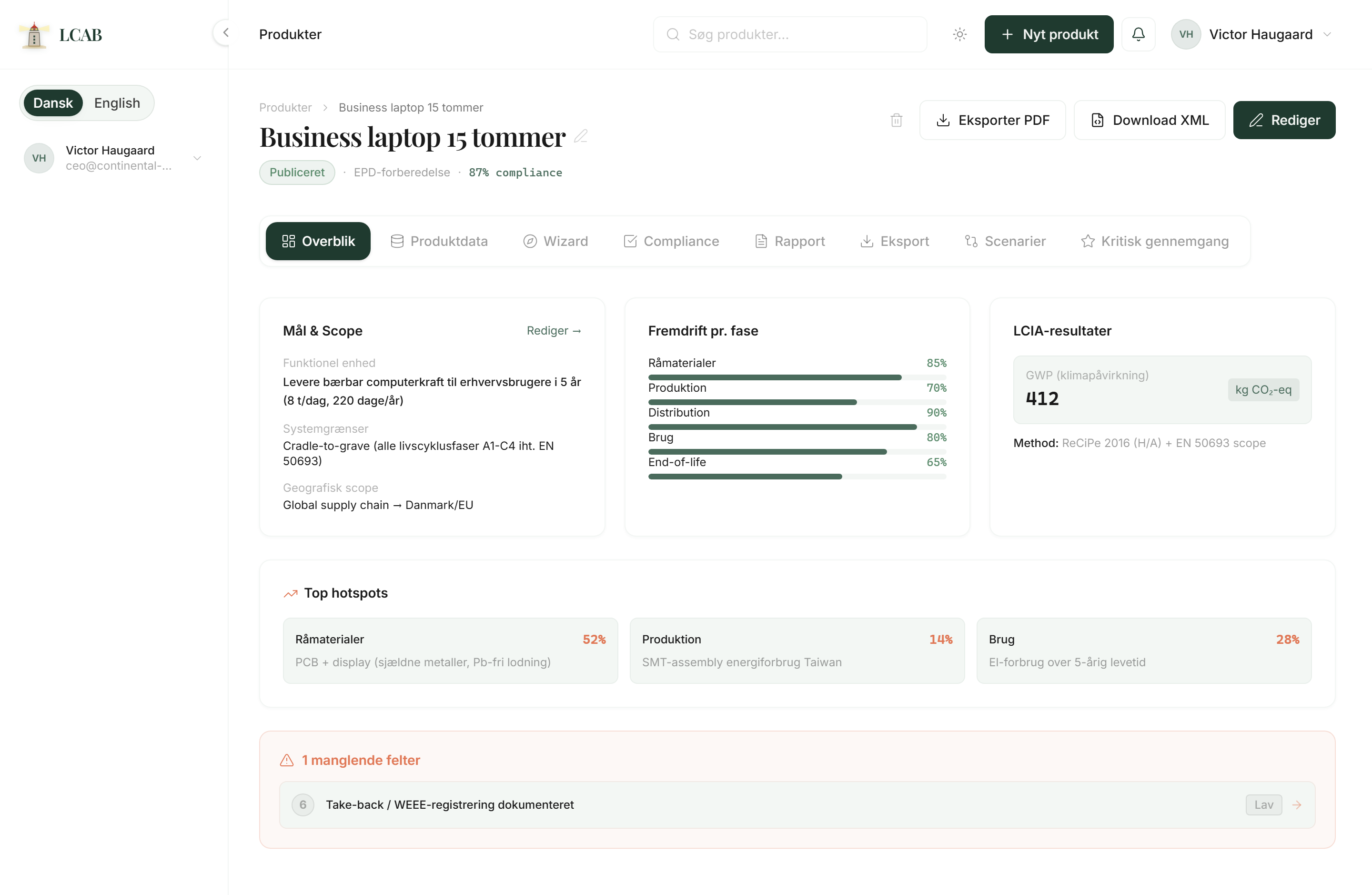
LCAB product page with scope, progress, LCIA and hotspots

Context

Products and materials are the core area in LCAB: the place where the product, the bill of materials, suppliers, and documents belong together. Without that shared home, every customer request becomes a new hunt through folders and old sheets.

Here you see status, link materials and suppliers, add certificates, and have a clear starting point when you later move on to LCA, reports, or a product passport. You start with what you have, not with the perfect model.

When materials are reused across products, you save time and see faster where documentation is thin. That matters especially for small teams where the same person often buys, documents, and answers the customer.

Context

Why it matters for a small product team

In a small team, product data is often person-bound: a spreadsheet in purchasing, a PDF in quality, an email thread in sales. When someone is out sick or changes jobs, the overview disappears. A shared product place turns the customer answer into a lookup, not detective work.

It also means you can reuse materials and suppliers across products. That saves time, and it makes it easier to see where documentation is thin before a customer or a tender asks.

When documents follow the product, material, or supplier, you send the right version on. You avoid an old PDF becoming the one the customer remembers.

A shared product place turns the customer question into a lookup, not detective work.

In depth

What you find here

Each part has a clear purpose. Here is what it does, when it makes sense, and how teams typically use it.

01

Products and dashboard

The dashboard shows your products, compliance score, and next steps. The product page gathers materials, suppliers, documents, LCA, and passport in one place, so you always know where the work stands without opening five folders.

Use it whenever you need to find a product, check status, or continue the work.

How to use it

  1. Sign in and open the dashboard for a quick overview.
  2. Go to Products to open an existing product or create a new one.
  3. Use the product page as the base when linking materials, documents, or continuing the wizard.

02

Material library

A shared library of materials with name, origin, and available environmental data. Materials can be reused across products and imported via Integration, so the bill of materials does not live an isolated life in every sheet.

Use it when you want to stop re-entering the same material in new spreadsheets.

How to use it

  1. Open Materials, or click Integration and choose Excel/CSV.
  2. Create manually, or approve mapping and extract data from the file.
  3. Link the material to the product from the product page or platform tab.

03

Suppliers

Supplier cards with country, contact, certifications, linked materials, and documents. Import via Integration, Excel, Extract data. That turns traceability into something you can point to, not something you reconstruct from memory.

Use it when customers ask about origin, traceability, or supplier documentation.

How to use it

  1. Click Integration on Suppliers, choose Excel, and extract data from the file.
  2. Or create the supplier manually and link materials and documents to the card.
  3. Open the supplier to see the full picture before you answer the customer.

04

Document center

Gathers certificates, tests, REACH/CE, EPD files, and supplier sheets. Documents can be linked to product, material, or supplier, so the right file follows the right thing even when the version changes.

Use it for all product documentation, not only LCA reports.

How to use it

  1. Go to Documents and register the file with type and optional expiry date.
  2. Link the document to the right product, material, or supplier.
  3. Upload a new version when the certificate is renewed, so the old one is not what you send on.

Outcome

What you get

  • Dashboard and product page

    Overview of products, status, and next steps. The product page gathers materials, suppliers, documents, LCA, and passport in one place.

  • Material library

    Reuse materials across products, with name, origin, and available environmental data.

  • Supplier cards

    Country, contact, certifications, and linked files, so traceability becomes something you can point to.

  • Document center

    Certificates, tests, REACH/CE, EPD, and supplier sheets linked to the right thing, even when the version changes.

Practice

What you do not need to be an expert in

You do not need to know ISO numbers or EPD modules to get value here. You need to know your product, what it is made of, who supplies it, and which files you already have.

LCAB helps you put that in order and shows what is missing. Deeper method comes when you are ready for wizard or passport.

Start

Typical start in LCAB

  1. Create the product

    Start manually, or pull name and basic data in from Excel via Integration.

  2. Add core data

    Import or create the most important materials and suppliers, and link them to the product.

  3. Add documents

    Link certificates, tests, and data sheets you already have, so the files follow the product.

  4. Use the product page

    Make it the base when you continue to wizard, report, or product passport.

Answers

Short answers

01

Do we need every material in place before we start?

No. Start with what you can document today. Gaps become visible, and you can fill them when the supplier replies.

02

Can materials be reused across products?

Yes. The material library is shared, so you avoid typing the same thing into new sheets every time.

03

Do documents only belong to LCA?

No. The document center is for all product documentation: certificates, tests, REACH/CE, EPD files, and supplier sheets.

Next step

Want to see it on your own products?

Book a walkthrough. We look at your bill of materials and files and show how they land in LCAB.

No commitment. You can start with the demo if you want to see the system first.

No commitment

01

Book a walkthrough

Please contact me by